

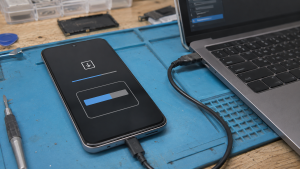
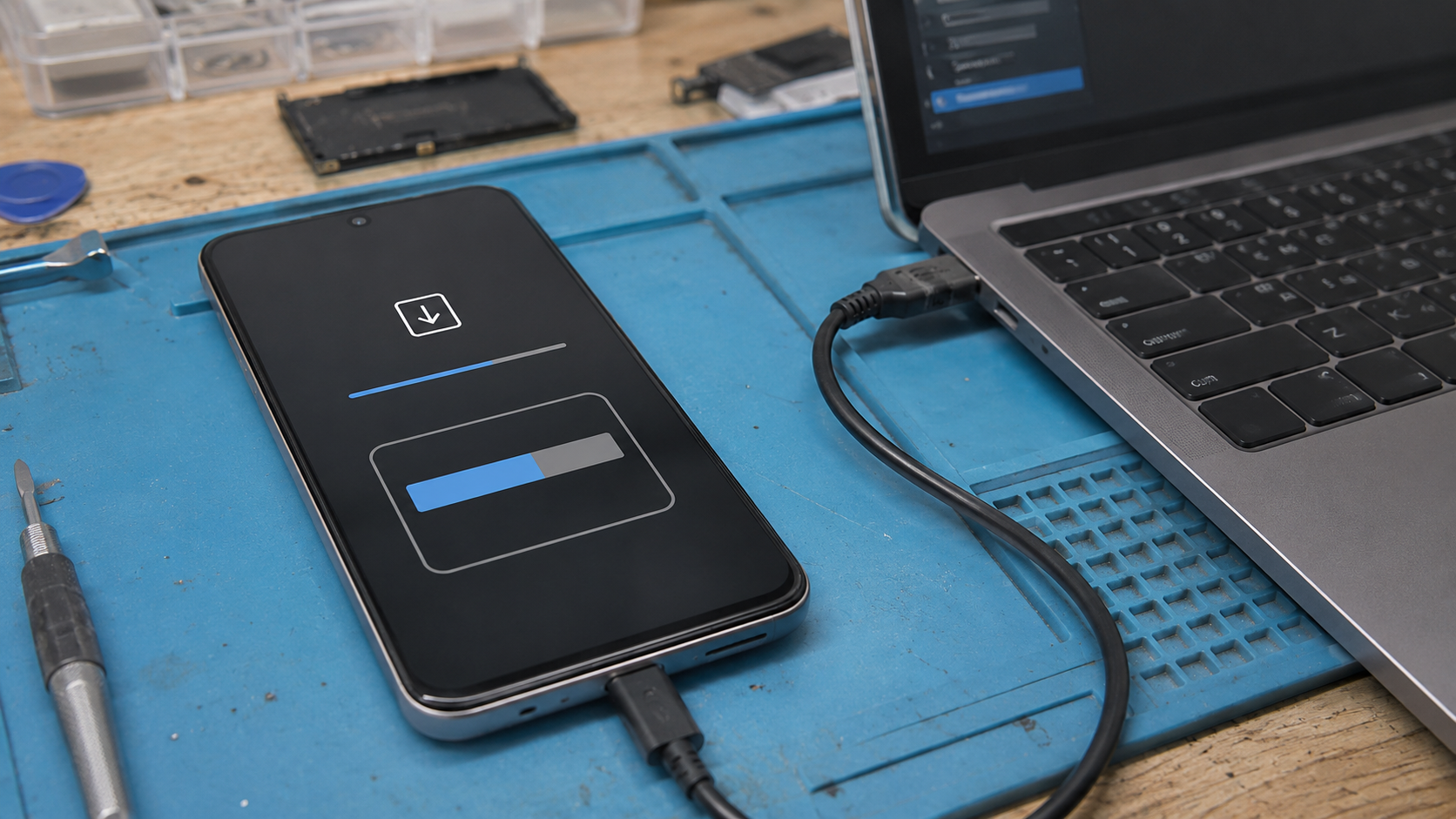
An Android OTA can fail with a not enough space message even after the owner deletes a few apps. At the repair counter, the pattern is familiar: the update downloads, the phone prepares the install, then it returns to the same storage warning. The free-space number looked acceptable, but Android did not have enough usable working room to stage the package.
Do not start with a factory reset. First prove whether this is really a storage staging problem. If the phone still boots, back up the owner data, free clean user files, clear only safe caches, restart, and retry once. Repeating the same failed install can leave update remnants behind and make the next storage reading less honest.
First protect the data
If the phone reaches the home screen, treat that as the best repair window you may get. Back up photos, videos, documents, authenticator recovery codes, and chat data before clearing anything that can erase accounts or local databases. A storage fix is not worth losing the owner’s only copy of their files.
Use a computer over USB if MTP still works. If the owner uses cloud backup, open the gallery app and confirm the latest photos are actually backed up before deleting local copies. Messaging apps need their own check. A phone can show a cloud backup as complete while large local media folders still sit in internal storage.
- Do not clear app data without permission.
- Do not factory reset while the phone still has unbacked files.
- Do not delete random folders under
Android/data,Android/obb, or unknown system directories. - Do write down the model number, build number, and current Android version before changing update paths.
Read the storage number like a technician
The download size is not the same as the install space. A 1.8 GB OTA may need several gigabytes more while Android verifies the package, stages files, writes metadata, and prepares the reboot step. For a normal security patch, aim for at least 3 to 4 GB of internal free space. For a major Android version update, aim for 6 to 8 GB before retrying.
On phones that use A/B updates, Android prepares the update before switching to the other slot during reboot. On newer dynamic-partition devices, the updater may also need room for temporary snapshot files in user data. On older recovery-based devices, the package may be unpacked through a cache or data staging area. The owner sees one free-space number, but the updater has stricter needs.
This is why an SD card rarely solves the problem. Unless the phone uses adopted internal storage correctly, the OTA still needs internal storage for staging. Moving camera files to an SD card helps only because it frees internal space. Downloading the update itself to an SD card does not make an unsafe package safe, and it does not bypass staging requirements.
Free files that rarely break the phone
Start with user files the owner can recognise. Camera videos, screen recordings, old APK files, offline maps, copied ZIP files, and duplicate download folders are safer targets than app databases. If a gallery app has a trash folder, empty it after confirming the backup. Deleted photos can stay in trash for weeks and still count against internal storage.
Messaging apps are often the real storage problem. Telegram, WhatsApp, Signal, and similar apps can keep years of videos and forwarded files. Use the app’s own storage manager when possible. That lets the owner remove large media without wiping the whole chat database or signing the account out.
After freeing space, restart the phone before checking the update again. Some devices do not recalculate available storage cleanly until media scanning and the storage service run again. If you delete 7 GB and immediately retry without a reboot, you can waste the cleanest test.
Use cache before data
App cache is usually safe to clear. App data is not the same thing. Cache removes temporary files. Data can remove logins, local downloads, maps, browser profiles, game files, payment app state, and settings. On a customer phone, clearing data without consent is a repair mistake.
Check the large apps first: browsers, short-video apps, maps, streaming apps, social apps, and messaging apps. Clear cache from Android settings, then reopen storage and confirm the number moved. If it barely changes, do not keep tapping through every app. The problem is probably media, update remnants, a hidden user profile, or the update path itself.
Clear the updater only when Android exposes it
If the update failed after download, the OTA package may still be held by a system updater app. Some brands expose this in Settings > Apps after you choose to show system apps. Names vary: System update, Software update, Updater, or a brand-specific updater service.
Clear cache first. Clear storage or data only if the owner has a backup and you understand what that brand stores there. On many phones this removes the downloaded update and forces a fresh download. On others it can reset update preferences or hide useful error history. If the updater is not visible, leave system folders alone. File-manager guessing can turn a storage fault into a boot fault.
Check for hidden storage cases
A second user profile, work profile, Secure Folder, cloned apps, or private-space feature can hold data that the main owner account does not notice. If the phone supports those features, check them before assuming Android is lying. A technician should also look for deleted-file trash folders inside gallery, file manager, voice recorder, and notes apps.
Watch for storage health symptoms. If files delete and reappear, the phone freezes while calculating storage, apps crash while writing, or the update fails at a different percentage each time, stop treating it as normal cleanup. Weak battery, failing internal storage, or a damaged firmware state can look like a space problem from the owner’s side.
Match the package, build, and region
Storage is only one cause of an OTA failure. Android can reject an update when the package does not match the exact model, region, carrier build, or current firmware state. A rooted phone, modified system partition, mismatched repair firmware, or cross-region build can fail verification even if the storage screen looks fine.
Before any manual update or firmware repair, record the model number, build number, region or CSC where relevant, bootloader state, and the exact update message. Do not flash a package because the marketing name matches. Two phones with the same public model name can need different firmware. The wrong file can fail halfway or make recovery harder.
Use recovery mode carefully
Recovery mode is useful only when the menu offers a safe path that matches the case. If an older phone has wipe cache partition, that is different from wipe data/factory reset. Many newer phones no longer expose a useful cache wipe, so do not hunt for it as if every Android device has the same menu.
Apply update from ADB or Apply update from SD card does not remove the need for the right package, enough battery, and a backed-up phone. These options are for owner-authorized repair with the correct official package. They are not shortcuts around model mismatch, account ownership, or damaged storage.
Retry once, then stop
Once the phone has a backup, 6 to 8 GB of internal free space for a major update, stable Wi-Fi, and enough battery, restart and retry the OTA once. If the same error returns, write down the exact wording and the install percentage. Do not keep deleting random files just to feel busy.
The next step is diagnosis: battery stability, internal storage behavior, firmware build match, update package state, and recovery messages. Thin advice says to free space and try again. A repair workflow proves what changed, protects the data first, and stops before a simple OTA problem becomes a wiped or non-booting phone.