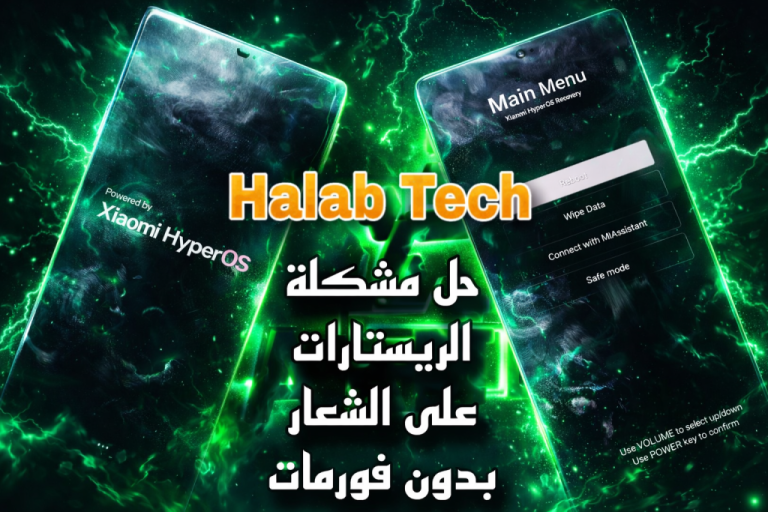
📌 Key Takeaways
- Device: Redmi 1 W (HM2013023)
- Problem: Stuck on second logo & device encryption after restart / update / screen replacement
- Solution: Flash OTA ROM via HalabTech tool and Mi Assistant mode
- Result: No format — No data loss
- Requires: OTA ROM only (not Fastboot)
- Download tool from: halabtech.com
- Download ROM from: support.halabtech.com
- By: Omar Al Kurdi — HalabTech Team
⚠️ Important Warning:
You must download the OTA ROM exclusively — NOT the Fastboot ROM.
Fastboot ROM will wipe all your data — use OTA only to preserve data.
Make sure to download the correct ROM matching your device version from support.halabtech.com.
✅ Pros & Cons
👍 Pros
|
👎 Cons
|
Fix Redmi 1 W (HM2013023) Stuck on Second Logo & Encryption — No Data Loss!
Official HalabTech method to fix second logo hang and device encryption on Redmi 1 W HM2013023 — no format, no data loss, no paid tools!
✅ Uses: OTA ROM + Mi Assistant Mode — Data Safe!
Download tool at halabtech.com | ROMs at support.halabtech.com
🔍 What is the Second Logo Hang Problem on Redmi 1 W?
Dear HalabTech followers, as always we bring you exclusive solutions for your devices. Today’s guide covers a very common problem affecting Redmi 1 W (HM2013023) and other Xiaomi/Redmi phones.
After a restart, system update, or screen replacement, your Xiaomi phone may get stuck on the second logo and refuse to boot normally — or it restarts into Recovery mode. Previously, the only fix was a full format that erases all data. But the HalabTech team has found a solution that requires NO format and loses NO data!
📋 When Does This Problem Occur on Redmi 1 W?
- 🔄 After a system restart or update
- 📱 After a screen replacement
- ⚡ After an unexpected power cut or reboot
- 🔐 When device encryption triggers unexpectedly
📋 Step-by-Step: Fix Second Logo on Redmi 1 W (HM2013023)
Download the HalabTech Tool
Download the dedicated free tool from halabtech.com. This tool is specifically designed to fix second logo and encryption issues on Redmi 1 W HM2013023 and other Xiaomi/Redmi devices.
Open Tool & Connect in Mi Assistant Mode
Open the tool and connect your Redmi 1 W HM2013023 to your PC using Mi Assistant mode. The tool will automatically detect your device and display the required ROM version.
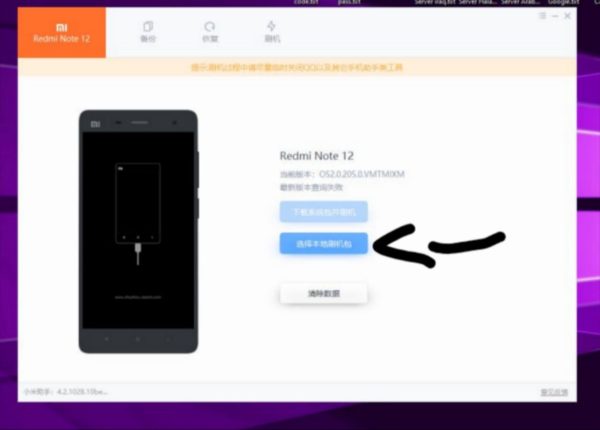
Download Correct OTA ROM
The tool will show you the exact ROM version needed for your Redmi 1 W HM2013023. Go to support.halabtech.com and download the matching OTA ROM.
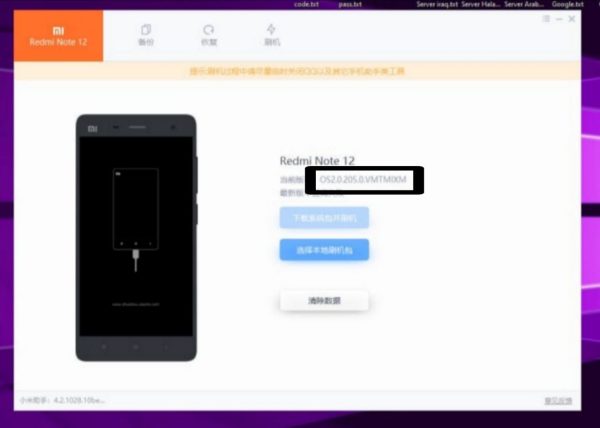
Select ROM & Start Flashing
Click the button shown in the tool screenshot, select your downloaded OTA ROM file, and the flashing process will begin automatically. Wait for it to complete without disconnecting the device.
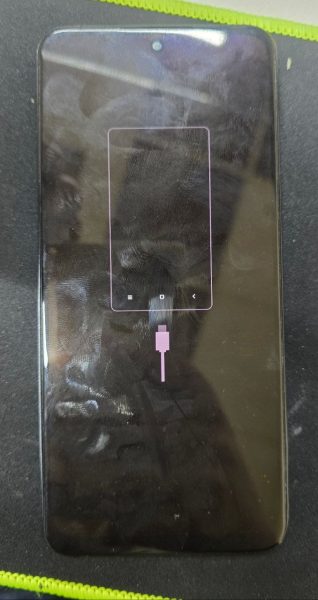
Done! Device Works Normally with All Data!
After flashing completes, your Redmi 1 W HM2013023 will boot normally with all data fully intact. No data loss, no format, no paid tools — problem solved!
💡 Important Tips Before Starting the Fix on Redmi 1 W
- Use OTA ROM Only: Never use Fastboot ROM — it will wipe your device data completely.
- Match the ROM Version: The tool will display the exact version — download the exact match from support.halabtech.com.
- Charge Your Battery: Ensure Redmi 1 W has at least 50% battery before starting.
- Use Original USB Cable: A quality cable prevents connection issues during flashing.
- Don’t Disconnect During Flashing: Wait until the process completes fully before touching the device.
- No Paid Tools Needed: This method is completely free — don’t fall for paid alternatives.
- Works After Screen Replacement: Especially useful for technicians who replace screens on Xiaomi devices.