
📌 Key Takeaways
- Device: Samsung A515X
- Problem: KG lock — device disabled by Samsung lock system
- Solution: KG Bypass via SamsungTool.us tool
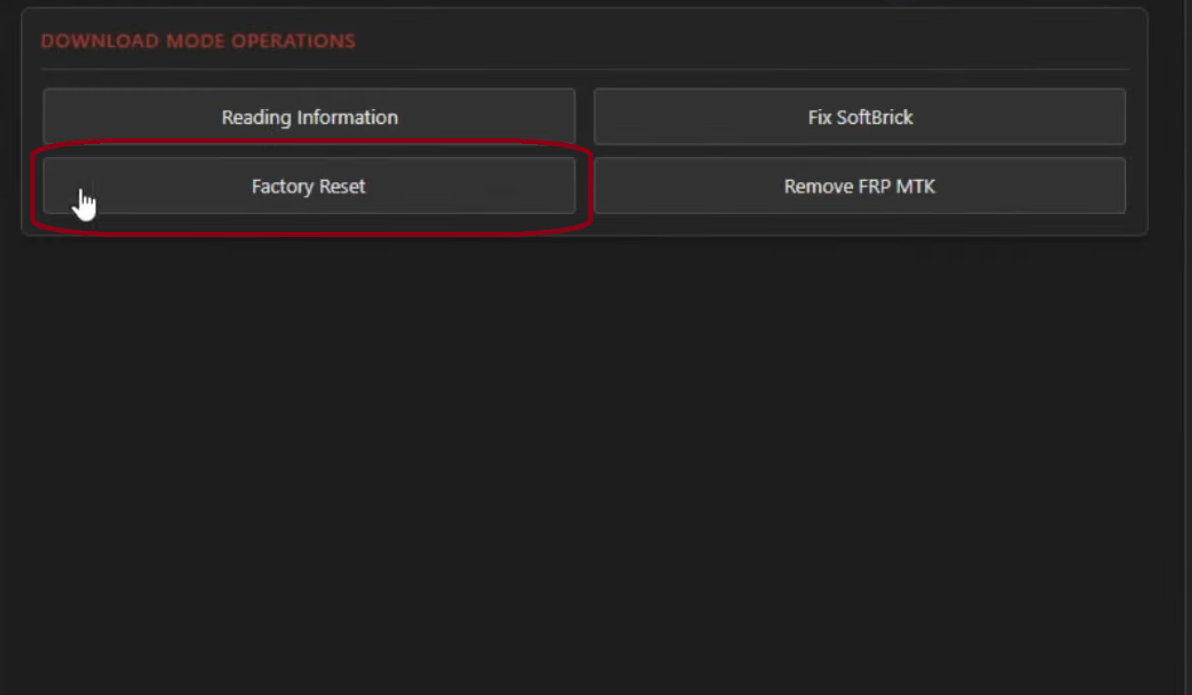
- Steps: Factory Reset (DL Mode) → Enable ADB → KG Removal [ADB]
- ⚠️ Warning: ALL device data will be wiped during the process — back up first!
- Result: Device works normally after setup
- ⚠️ Prohibited: Do NOT install OTA updates after bypass
- ✔️ Supported: Android 10 to 16 | Security Patch before 01/01/2026
- Android 16: Requires Credits from server.halabtech.com
- Activate service: server.halabtech.com
- Download tool: samsungtool.us
⚠️ Legal & Ethical Notice — Please Read Before Proceeding
- We do not allow this service to be used for any fraudulent or illegal activities.
- ⚠️ Warning: ALL device data will be wiped during this process. Back up your data before starting.
- This service is intended only for devices whose owners have lost access to them.
- This is a bypass solution and does not permanently remove the lock from Samsung’s servers.
- ⚠️ For device stability: Please do not install OTA system updates after performing the bypass.
- ✔️ Factory Reset is supported.
- Supports Android 10 to Android 16 on compatible Samsung models.
- The security patch date must be before 01/01/2026.
✅ Pros & Cons
👍 Pros
|
👎 Cons
|
Samsung A515X — KG Bypass | Data Will Be Wiped!
Official HalabTech method to bypass KG lock on Samsung A515X using SamsungTool.us via ADB mode. ⚠️ All device data will be wiped.
✅ Supports: Android 10–16 | Security Patch before 01/01/2026
Activate at server.halabtech.com | Tool at samsungtool.us
🔒 What is KG Lock on Samsung A515X?
Dear HalabTech followers, welcome to another exclusive guide from the HalabTech team. Today we cover one of the most common issues affecting Samsung A515X and many other Samsung devices: the KG lock.
KG is Samsung’s built-in device locking system that disables a device when lease or installment payments are missed. When activated, the device simply refuses to work — you cannot make calls, use apps, or access anything. The HalabTech team provides a bypass method that gets your Samsung A515X working again. ⚠️ Note: all device data will be wiped — please back up before starting.
📋 Common Reasons for KG Lock on Samsung A515X
- 💳 Missed installment payments on a financed Samsung device
- 📄 Expired rental or lease contract for the device
- 🔐 Carrier/operator activation of remote lock policy
- 🔄 Device sold or transferred without clearing the KG lock
📋 Step-by-Step: Bypass KG Lock on Samsung A515X
Activate SAMSUNGTOOL.US Service
First, activate the SAMSUNGTOOL.US service from HalabTech server at server.halabtech.com. Once activated, download the SamsungTool.us tool from samsungtool.us.
Open Tool & Factory Reset (Download Mode Way)
Open the SamsungTool.us tool and connect your Samsung A515X to the PC via USB. Put the device in Download Mode, then click the Factory Reset (Download Mode Way) button in the tool.
Enable ADB on the Device
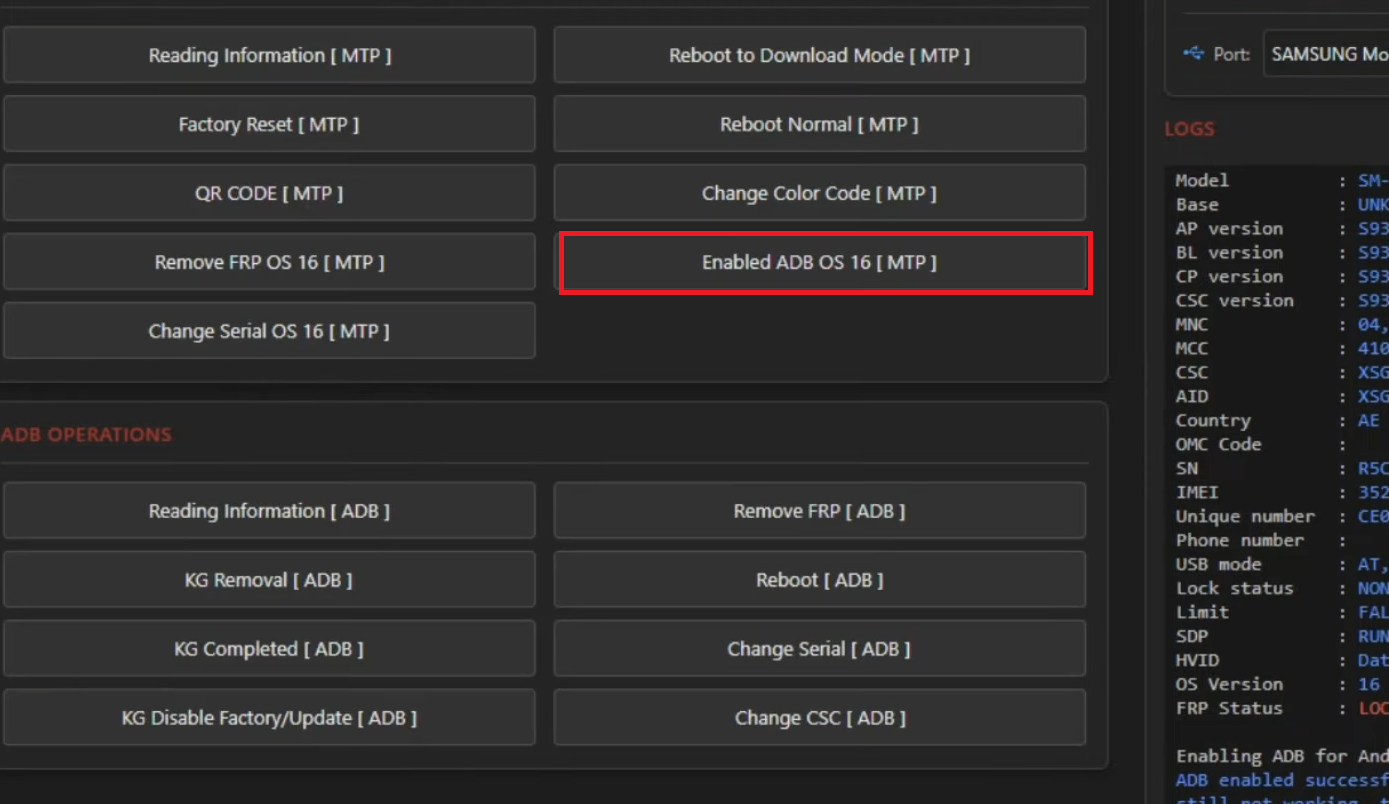
After the device reboots, follow the on-screen instructions to enable ADB (Android Debug Bridge) on the Samsung A515X. This is required for the KG bypass process to communicate with the device.
Read Info & Execute KG Removal [ADB]
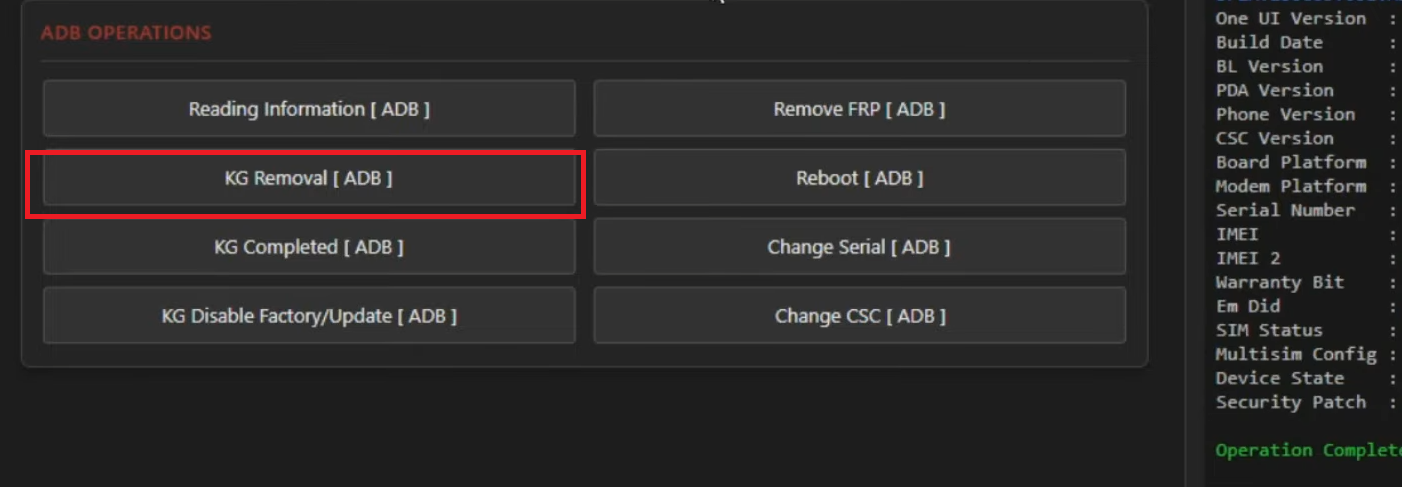
Click Read Info in the tool to verify the device details and confirm compatibility. Then click KG Removal [ADB] to execute the bypass. Wait for the process to complete without disconnecting the device.
Done! Samsung A515X Works Normally!
After the bypass completes, your Samsung A515X will function normally. ⚠️ Remember: do NOT install OTA updates to preserve the bypass. Factory Reset is fully supported.
💡 Important Tips for Samsung A515X KG Bypass
- ⚠️ Data Will Be Wiped: ALL device data is erased during the process — back up everything before you start.
- No OTA Updates: Never install system OTA updates after bypass — this will re-enable the KG lock.
- Check Security Patch: The security patch must be before 01/01/2026. Check under Settings > About Phone.
- Android 16 Needs Credits: Order credits from server.halabtech.com before starting.
- Factory Reset is Safe: You can factory reset the device after bypass without issues.
- Charge Your Battery: Ensure Samsung A515X has at least 50% battery before starting.
- Use Original USB Cable: Avoid connection issues during the ADB process.
- Authorized Use Only: This service is for legitimate owners who lost access to their own device.